How to Use AI to Write an eLearning Storyboard – Step by Step
Storyboarding is the part of a project where good intentions go to stall. You have the objectives, a folder of source documents and a template with fourteen columns, and it all has to become forty screens of narration, on-screen text, visuals and interactions. It's careful, repetitive work, which is exactly what an AI storyboard workflow handles well. How do you use AI to write an eLearning storyboard you'd be comfortable handing to an SME?
You use AI to write an eLearning storyboard by briefing it like a new team member, having it build a screen-by-screen outline first, then drafting screens in small batches inside your own template, and finishing with a human review for accuracy and flow. The model handles the volume, including narration, on-screen text, visual notes and question drafts, while you handle the decisions about structure, emphasis, what to cut and whether every screen supports a real objective. Done this way, a first draft that once took days can come together in an afternoon.
What Do You Need Before You Start an AI Storyboard?
You need four things ready before you open a chat window: clear objectives, approved source material, a short audience profile and your storyboard template. If you skip any of these, the model will fill the gap with guesses.
- Objectives. Measurable, action-based and agreed with the stakeholder. These are the spine of the storyboard.
- Source material. Procedures, policies, SME notes and transcripts. Remove anything confidential your tool isn't approved to handle.
- Audience profile. Job role, experience level, where and how they'll take the course, and any known frustrations.
- Template. The column headings you use, such as screen number, screen title, narration, on-screen text, visuals, interaction and developer notes.
Use a tool your organization has approved, ideally a business or enterprise plan. Most major assistants, including ChatGPT, Claude, Microsoft Copilot and Gemini, can handle long documents and keep a project's context across a working session.
Step 1: Brief the Model Like a New Designer
Start with a project brief that establishes the role, audience, tone and rules. This single message shapes every screen that follows, so it deserves ten minutes of careful attention.
You are helping me write an eLearning storyboard.
Audience: new warehouse associates, first two weeks on the job,
taking the course on a shared tablet in short sessions.
Tone: plain, friendly, direct. Grade 8 reading level for narration.
Course length: about 15 minutes. Three modules.
Rules: every screen must support one of the objectives below.
Narration under 75 words per screen. On-screen text is a short
summary, never a copy of the narration.
Objectives: [paste]
Source material: [paste]
Do not write anything yet. Confirm you understand and list
any questions about the content.
Don't skip the final instruction, because asking for questions first often reveals gaps in the source material, like a procedure that skips a step or two documents that disagree. Answer those questions before moving on.
Step 2: Get a Screen-by-Screen Outline First
Ask for an outline before any full screens. You want a numbered list of screens, each with a title, its purpose and the objective it supports, and since this is where you shape the course, take your time.
Read the outline critically, cutting screens that only present nice-to-know information, moving practice earlier and merging screens that say the same thing twice. Ask the model to revise, and repeat until the structure is right, because changing an outline takes minutes while changing forty finished screens takes hours.
A good check at this stage: count how many screens ask the learner to do something. If most screens are "click next" content, ask for more practice and fewer explanations.
Step 3: Draft Screens in Small Batches
Draft five to eight screens at a time, formatted to match your template, since small batches keep quality high and make review manageable. Ask for a table with your exact column headings so you can paste it straight into your document or spreadsheet.
| Column | What to ask the AI for |
|---|---|
| Screen title | Short, descriptive, no jargon |
| Narration | Conversational script within your word limit |
| On-screen text | Three to five words per bullet, summarizing key points |
| Visuals | A plain description of the image, photo or animation |
| Interaction | What the learner does and what feedback they get |
| Developer notes | Triggers, variables, timing, accessibility notes |
Read each batch before requesting the next. If the narration drifts too formal or too long, say so plainly: "Too wordy. Cut each narration by a third and use shorter sentences." The model adjusts quickly, and the correction carries into later batches.
Step 4: Write the Practice and Knowledge Checks
Ask for practice activities and knowledge checks tied to each objective, with feedback for every choice. Scenario questions work especially well: "A coworker asks you to skip the pallet check because the truck is late. What do you do?" The model can draft the setup, three or four realistic choices and feedback that explains why each is right or wrong.
Assessment writing deserves its own care. Our guide to AI generated quiz questions covers how to get strong distractors, avoid giveaway answers and match questions to the level of thinking each objective requires.
Step 5: Add Visual and Media Notes
Next, ask the model to strengthen the visual column, because vague notes like "image of a warehouse" slow developers down. Better notes describe the shot, the purpose and any accessibility needs: "Photo of an associate scanning a pallet label, shot from behind, label clearly visible. Alt text: associate scanning pallet label with handheld scanner."
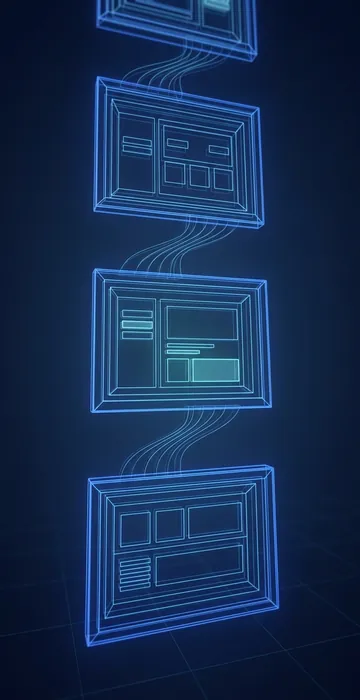
You can also ask for suggestions where a simple animation, a short video or a diagram would teach better than narration. Not every suggestion will fit your budget, but the list gives you alternatives to discuss with your developer.
Step 6: Run an AI Self-Check, Then a Human Review
Before any person reviews the storyboard, have the model check its own work against your rules. A prompt like this catches a lot:
Review the full storyboard against these rules and list
every problem by screen number:
1. Every screen supports a listed objective.
2. Narration is under 75 words.
3. On-screen text does not repeat narration word for word.
4. Terms are used consistently.
5. Reading level is around grade 8.
Do not fix anything yet. Just list the issues.
Fix the issues, then do your own review.
Read it from start to finish as a learner would, asking whether the flow makes sense. Is anything missing that a new associate would need? Does every fact match the source? This human pass is where you catch the confident errors that read smoothly but are wrong, like a step order that changed between drafts or a policy detail the model filled in from general knowledge.
Where AI still needs you: checking every procedure step, number and policy detail against the source. The model writes fluently either way, so fluency is no proof of accuracy.
Step 7: Hand Off to Your SME and Developer
Send the revised storyboard to your SME with focused questions instead of a general "please review," directing them to the screens with the riskiest content and asking specific questions: "Is this the right order for the lockout steps?" SMEs tend to respond faster and more carefully when they know where to look.
Once approved, the storyboard goes to development. Because the AI drafted everything in your template's format, the developer gets consistent columns and complete notes. Some teams also ask the model to produce a short change log after each review round, which makes it easy to see what moved between versions.
What Mistakes Should You Avoid with an AI Storyboard?
The most common mistake is requesting the whole storyboard in one prompt, which produces something that looks complete but is thin, repetitive and difficult to review. Long single outputs also tend to lose track of your rules halfway through, so screen 30 rarely follows the word limit you set for screen 1.
A few other traps show up again and again:
- Skipping the outline. Jumping straight to screens locks in a structure you never really chose.
- Letting the model pick the facts. If a detail isn't in your source material, the model may supply a plausible one. Tell it to write "[CHECK WITH SME]" instead of guessing, and it usually will.
- Accepting the first tone. Early batches set the voice for the whole course. If it sounds like a textbook, fix it on batch one, not batch five.
- Forgetting accessibility notes. Ask for alt text, caption notes and keyboard-friendly interaction descriptions in the developer column from the start. It's far easier than adding them later.
- Treating the draft as final. A storyboard written in an afternoon still deserves a full review. The speed is the gift; the review is the price.
One helpful habit is to save your project brief, your batch prompt and your self-check prompt as a reusable set. On the next project you only change the audience, objectives and source, and the rest of the workflow is ready. Over a few projects that small library becomes one of the most valuable files your team owns.
Why the AI Storyboard Works Best with You in the Director's Chair
A storyboard has always been a planning tool, a way to see the whole experience before anyone builds it. AI doesn't change that purpose; it changes how quickly you reach a complete draft worth discussing.
The workflow above keeps you in control of the parts that matter: the structure, the emphasis and the accuracy. The model handles the typing, formatting and first-pass wording, which is a worthwhile trade for almost any team.
Run the workflow on a short module first: brief the model, build the outline, draft one batch of screens and time yourself. Once the steps feel natural, your next AI storyboard will come together faster, and your SME will thank you for the cleaner draft.