How to Record eLearning Narration That Sounds Professional
You can forgive a course for a plain template, but you can't forgive narration that sounds like it was recorded in a stairwell. Echo, electrical hum, uneven volume and a narrator who obviously sounds like they're reading are the fastest ways to lose a learner. Fortunately, most of the solution costs less than people expect. How do you record eLearning narration that actually sounds professional?
Professional-sounding eLearning narration comes from four things working together: a script written to be heard, a quiet and soft room, a decent microphone used at a consistent distance, and light, careful editing. The room matters more than the microphone. A modest USB microphone in a closet full of clothes will beat an expensive one in an empty office with hard walls. Record at steady levels, keep the same setup for every session, and edit out mistakes and noise without squeezing the life out of the voice. If you have a budget for one upgrade, spend it on treating the room or hiring a professional voice for high-visibility courses.
Start with a Script Written for the Ear
Narration problems often originate in the storyboard, because text written to be read on a screen sounds stiff when spoken aloud. Long sentences, stacked clauses and lists of nouns make the narrator stumble and the learner's attention drift.
Revise the script for listening with these adjustments:
- Use short sentences, one idea each.
- Use contractions. "You'll" sounds human. "You will" sounds like a contract.
- Talk to the learner as "you."
- Spell out how to say acronyms, numbers and product names in a pronunciation note.
- Don't read the screen word for word. Narration should explain, while the screen shows key words and visuals.
That last point matches what Richard Mayer's research on multimedia learning found: people tend to learn better when a conversational voice explains a graphic than when the same words are both spoken and printed on screen in full. The summary of Mayer's twelve principles from NUS Medicine is a quick read if you want the details.
Then read the entire script out loud before the recording session, and rewrite anything you stumble over.
Why Does the Room Matter More than the Microphone?
The room matters more because the microphone records the room. Hard surfaces like bare walls, desks, windows and tile floors reflect your voice back into the microphone a split second later. That produces the "recorded in a bathroom" sound, and no editing tool fully removes it.
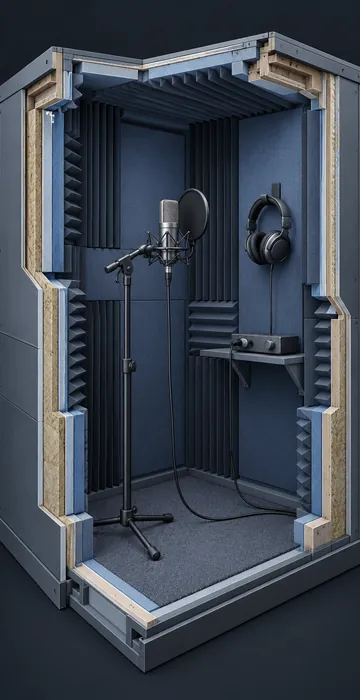
You don't need a professional studio, but you do need soft, absorbent materials near you:
- A walk-in closet full of clothes is a classic home booth for a reason.
- Heavy blankets or moving blankets hung behind and beside you help a lot.
- Rugs, upholstered chairs and bookshelves break up reflections.
- Stay away from corners and the middle of empty rooms.
Also eliminate background noise by turning off fans, air conditioning and noisy computers whenever possible. Silence your phone and record when the building is quiet. Your ears automatically tune out a refrigerator hum, but the microphone doesn't.
What Microphone Should You Use for eLearning Narration?
A good USB microphone is sufficient for most internal training. It plugs directly into a computer and requires no additional equipment. If you want more flexibility, an XLR microphone with a small audio interface gives you better control and room to upgrade later.
Whatever you choose, add these inexpensive accessories:
- A pop filter or foam windscreen to soften "p" and "b" sounds.
- A stand or boom arm, so the mic stays put and doesn't pick up desk bumps.
- Closed-back headphones, so you can hear what the mic hears.
Avoid the laptop's built-in microphone and gaming headsets with attached microphones, because they capture too much room and too little voice.
How to Record: Settings and Technique
Consistency is the entire objective. A course recorded over three weeks has to sound like it was recorded in one sitting. These settings are a reliable starting point:
| Setting | Starting point | Why |
|---|---|---|
| File format | WAV for your masters | Keeps full quality for editing |
| Sample rate | 44.1 kHz or 48 kHz | Standard for audio and video |
| Recording level | Loudest peaks around -12 to -6 dBFS on the meter | Leaves room so loud words don't distort |
| Mic distance | About a hand's width, kept the same | Steady tone and volume |
| Mic angle | Slightly off to the side of your mouth | Reduces popping and breath noise |
Then adopt a few habits that separate clean recordings from messy ones:
- Record ten seconds of silence at the start. This "room tone" helps with noise reduction and filling gaps.
- Stand, or sit up straight. Your voice sounds more energetic.
- Smile on friendly lines. Listeners can hear it.
- When you stumble, pause, then restart the whole sentence. It's far easier to edit than a patch mid-sentence.
- Drink water. Keep it at room temperature and skip dairy before a session.
- Take a photo of your setup: mic position, distance, input level. You'll need it for pickups.
How Do You Edit Narration Without Ruining It?
Edit lightly, because the goal is to remove distractions without making the voice sound processed. A free editor like Audacity handles everything most training narration requires. A typical sequence of operations looks like this:
- Remove mistakes, false starts and long pauses.
- Apply gentle noise reduction using your room tone sample. Too much makes voices sound watery.
- Even out the volume so quiet words aren't lost and loud ones don't jump out.
- Bring every file to the same overall loudness, so learners don't reach for the volume between slides. Pick one target and use it everywhere; Audible's ACX audiobook standard (RMS between -23 and -18 dB, peaks no higher than -3 dB) is a well-documented spoken-word benchmark if you need one.
- Trim the start and end of each file to a short, consistent bit of silence.
Save the edited masters separately from your raw recordings. Name files to match the slide or screen they belong to, like M2_S04_narration.wav. When a reviewer requests a change to one sentence, you'll locate it in seconds.
Don't Forget Captions and Transcripts
Every narrated course needs a text version of the audio. Learners who are deaf or hard of hearing depend on it, and plenty of others use it too: people in open offices without headphones, people on a noisy shop floor, and people who simply read faster than they listen. Your final, approved script is a head start, but update it to match what was actually recorded, including every pickup. Then add closed captions in your authoring tool and test that they line up with the audio.
Handling Pickups and Script Changes
There will be changes after recording, so plan for them. Pickups are the short re-recordings you make to correct a line, and they need to match the original exactly.
Use your setup photo to put everything back in its original position. Record a few lines from the original session first, compare them, and adjust until they match. Record the full sentence, or even the full paragraph, rather than a single word. Then check the new file against the old one in context before you replace it. A pickup that sounds different is more distracting than the error it fixed.
When Should You Hire a Professional Voice?
Hire a professional when the course is high-visibility, external-facing, lengthy or likely to be used for years. A skilled voice actor brings a trained voice, an acoustically treated booth and the ability to sound natural on the tenth take. They also return clean, consistent files that save you editing time.
Internal voices work well for short, frequently updated content, especially when learners know and trust the speaker. A familiar manager or trainer can make a course feel personal, as long as you coach them with the script tips above and give them a quiet room.
Also consider what's happening on the screen. Narration for software demonstrations should be brief and tightly timed to each click, which is a specialized skill of its own. If you're building that kind of course, my guide to software simulation training covers how to pace narration across show-me, try-me and test-me modes.
Professional eLearning Narration Is a Process, Not a Gadget
Good eLearning narration comes from a script written for the ear, a soft and quiet room, a decent mic at a steady distance, and gentle, consistent editing. None of it requires a large budget, but all of it requires discipline from the first recording to the last pickup.
Test the process on a short module before you commit a whole course to it: rewrite the script, set up the room, record, edit and play the result inside the course. Listen on cheap earbuds and laptop speakers, since that's how most learners will hear it. Correct whatever bothers you, then document your setup so every future session sounds identical.