What Is Mobile Learning? – Designing for the Phone First
Picture the people who take your training: a sales rep between appointments, a nurse at the start of a shift, a line supervisor on the plant floor, a new hire on the train home. Most of them have a phone within reach all day, and many rarely sit at a desk. Yet much of our training is still designed on a large monitor and squeezed onto a small screen as an afterthought, which is the problem mobile learning solves. What is mobile learning, and how do you design it for the phone first?
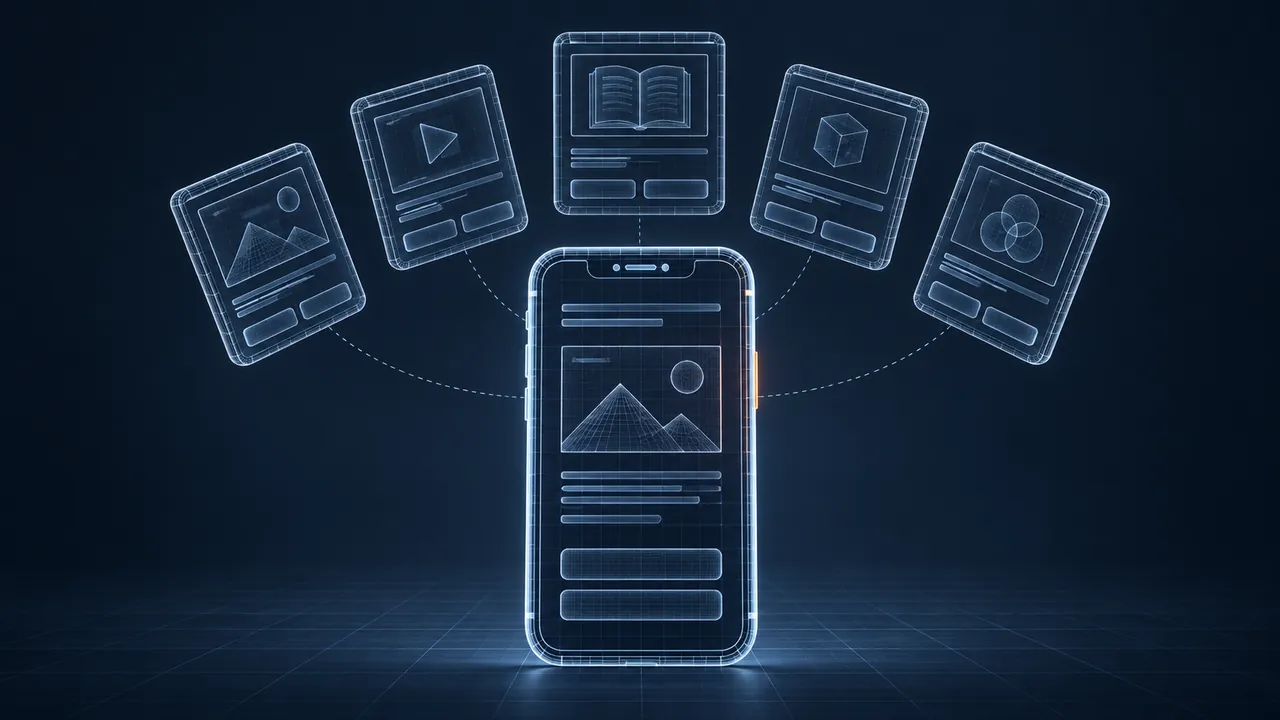
Mobile learning is training designed to be used on phones and tablets, in short sessions, wherever and whenever people need it. It isn't a desktop course shrunk to fit a small screen. Phone-first design means starting with the constraints of a phone (a narrow screen, touch input, short attention windows, and connections that come and go) and then letting the design scale up to larger screens. In practice that means single-column layouts, readable text, large touch targets, short focused lessons, captioned video and minimal typing, so that mobile learning fits into the workday instead of competing with it.
What Counts as Mobile Learning?
Mobile learning, sometimes shortened to mLearning, covers more than courses. The Wikipedia overview of m-learning traces how the idea grew alongside phones and tablets. For workplace training, it usually includes:
- Short lessons focused on one skill or task.
- Job aids, checklists and quick reference guides used during work.
- Short videos showing a procedure or a product feature.
- Spaced practice questions and reminders sent over days or weeks.
- Knowledge checks and quick assessments.
- Observation checklists that supervisors complete on a tablet.
The common thread is context, because mobile learning meets people where they are, often in the middle of their actual work.
Why Design for the Phone First?
Designing for the smallest screen first forces good decisions. When you only have room for one idea per screen, you remove filler; when people use their thumbs, you make controls bigger; and when sessions are short, you write tighter lessons. Those choices improve the desktop version as well.
Working in the other direction rarely succeeds. A slide-based course designed at a fixed widescreen size and then scaled down to a phone ends up with tiny text, cramped buttons and interactions that require a mouse, so learners pinch, zoom and eventually give up.
Responsive design is the technical foundation, because content reflows to fit the screen instead of shrinking. If you want to understand the mechanics, MDN's guide to responsive web design explains how layouts adapt across screen sizes.
Phone-First Design Rules That Work
Layout and Text
- Use a single column. Side-by-side content becomes unreadable on a phone.
- Keep body text comfortably large and lines short.
- Put the most important point first on each screen.
- Break long content into short sections with clear headings.
- Prefer vertical scrolling over sideways swiping for main content.
Touch and Interaction
Fingers are larger and less precise than a mouse pointer. Apple's design guidelines suggest touch targets of about 44 by 44 points, and Google's Material Design suggests about 48 by 48 density-independent pixels. Whatever the exact number, make buttons large and leave adequate space between them.
Place frequently used controls where thumbs can reach, usually toward the bottom of the screen. Avoid hover effects, which don't exist on touch screens, and avoid interactions that require precise dragging, since tap-based choices work best.
Media and File Size
Keep videos short and focused, and caption every one, since many people watch with the sound off. Compress images and video so lessons load quickly on mobile data, because a lesson that takes a long time to load on a weak connection simply won't get watched.
Typing and Forms
Typing on a phone is slow and error-prone, so use taps, toggles and selections instead of open text wherever you can. When you do need text input, keep it short and specify the appropriate keyboard type for numbers or email addresses.
Desktop Habits vs. Phone-First Choices
| Desktop habit | Phone-first choice |
|---|---|
| Fixed slide layout at widescreen size | Responsive, single-column layout |
| Hover tooltips and rollovers | Tap to expand, or text on screen |
| Drag-and-drop activities | Tap-to-select choices |
| Long modules of 30 minutes or more | Short lessons with saved progress |
| Small "next" arrows in the corner | Large buttons within thumb reach |
| Dense diagrams with small labels | Simplified visuals, zoomable detail |
How Do You Make Mobile Learning Accessible?
Phones come with powerful accessibility features built in, and your content should work with them. Test with VoiceOver on iOS and TalkBack on Android to confirm that every button is labeled and the reading order makes sense. Let people zoom and enlarge text without breaking the layout, and support both portrait and landscape unless the activity truly requires one. Give every video captions and every meaningful image alt text.

Contrast matters even more on phones, because screens are used in sunlight, in dim rooms and at low brightness to conserve battery. Choose high-contrast text and avoid light gray on white.
What About Weak or Missing Connections?
Many mobile learners work in places with poor signal, such as warehouses, rural sites, basements, vehicles and remote field locations, so design for that reality. Keep lessons lightweight, save progress frequently so nothing is lost if the connection drops, and let people download key resources ahead of time. For crews who regularly work far from a signal, it's worth looking at offline eLearning options that sync results when they reconnect.
How Do You Get People to Open It?
Excellent mobile content still has to be easy to reach. If learners need three passwords and a desktop bookmark to find a lesson, they won't bother, so remove every obstacle you can.
- Use single sign-on so people log in once with the account they already have.
- Put QR codes on equipment, workstations or break room posters that open the matching job aid or lesson.
- Send short, well-timed reminders, such as a practice question before a shift, rather than a flood of notifications.
- Keep the path from notification to content to one or two taps.
The QR code idea is underused. A code on a machine that opens a two-minute startup video gets used at exactly the moment it helps, which is the entire purpose of mobile learning.
When Is Mobile the Wrong Choice?
Mobile learning is powerful, but it isn't appropriate for everything, and it's worth being honest about the limits.
- Complex software simulations often need a larger screen to be realistic.
- Long, dense reading is tiring on a phone.
- Hands-on skills still need hands-on practice; mobile works best as preparation or reinforcement.
- Some workplaces restrict phone use for safety or security reasons.
A blended approach often works best. Use mobile for preparation, quick reference and reinforcement, and reserve the deeper practice for a computer, a classroom or the job itself.
How Should You Test on Real Devices?
Browser preview tools are useful, but they don't tell the whole story. Test on real phones, including an older, smaller model and a budget Android device, not just the newest flagship, and try the course on mobile data rather than office Wi-Fi. Use it outdoors for a few minutes, with one hand, with the screen reader on and with text enlarged, and you'll find problems no desktop review will catch.
Ask a few real learners to try it during their actual workday as well, because watching someone use a lesson between tasks is the fastest way to learn what works.
Mobile Learning That Fits the Workday
Mobile learning is training built for the device people already carry, designed for short sessions, touch and real working conditions. Designing for the phone first means one idea per screen, a single column, big targets, short captioned media, little typing and content that holds up on a weak connection.
Choose one piece of content your learners need on the job, like a checklist or a short procedure video. Build it phone-first, test it on real devices in real conditions, and observe how people use it. That small success will show you what to build next, and it will show your learners that training can fit their day.